
Managing Backlogs with Agentic Tooling
TL;DR: Connecting Claude Code to Atlassian's MCP Server turns Jira into an interactive assistant that can analyze, clean and generate backlog work from live project data, dramatically reducing the manual overhead of backlog and sprint management.
Jira is the system of record for everything my team ships, but the real challenge I see across many projects is the day-to-day work of managing it. Grooming the backlog, chasing down unassigned tickets, spotting duplicate issues that are really the same bug, and keeping a sprint aligned with its actual goal, are small but persistent administrative burdens that eat everyone's time.
None of these tasks are dramatic on their own. The cost shows up in longer meetings, manual sprint reviews and countless context switches throughout the day. Ten minutes here, 10 minutes there, repeated across an entire team, every day. Over time, these small inefficiencies add up to a significant productivity drain.
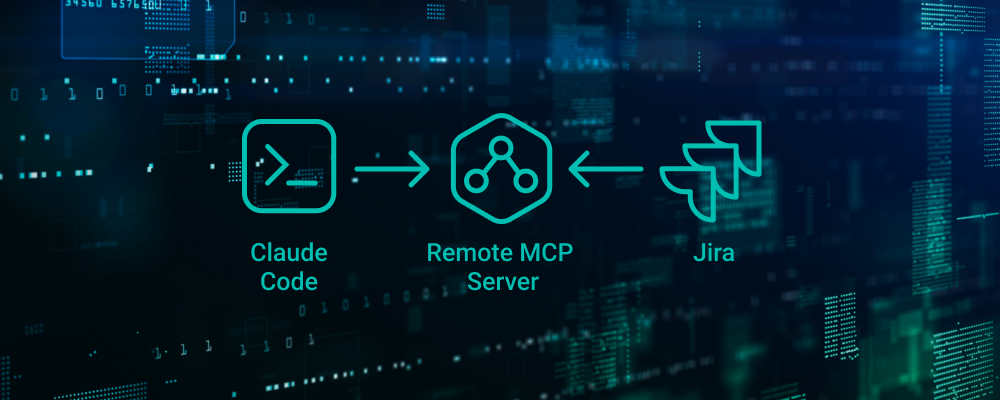
So I looked for a way to solve that. What I landed on was this: connect Claude Code to Atlassian's official Remote MCP Server.
It was extremely easy to set up. And it gave my Jira a personal assistant – one that reads the whole backlog the way a careful lead would and helps me turn vague ideas into user stories that are genuinely ready to build.
Connecting Claude Code to Jira with Atlassian's Official MCP Server
MCP is the standard that lets an AI assistant talk to real tools instead of just generating text. The piece that matters here is that Atlassian publishes its own, fully hosted MCP server. This isn't a community add-on or a script I had to babysit. It's the official Atlassian Remote MCP Server (now branded the Rovo MCP Server).
Crucially, it authenticates with OAuth and respects my existing Jira permissions. The assistant can only see and do what I can already see and do. That eliminates any permission headaches.
Once it's connected, Claude isn't guessing about my project from memory. It's querying the live backlog: listing issues, reading them, creating and transitioning tickets, linking dependencies, even writing the summary up into Confluence. The full configuration is in the appendix. It's three lines and a one-time browser login.
Example 1: Reading the Backlog Like a Technical Lead, in Seconds
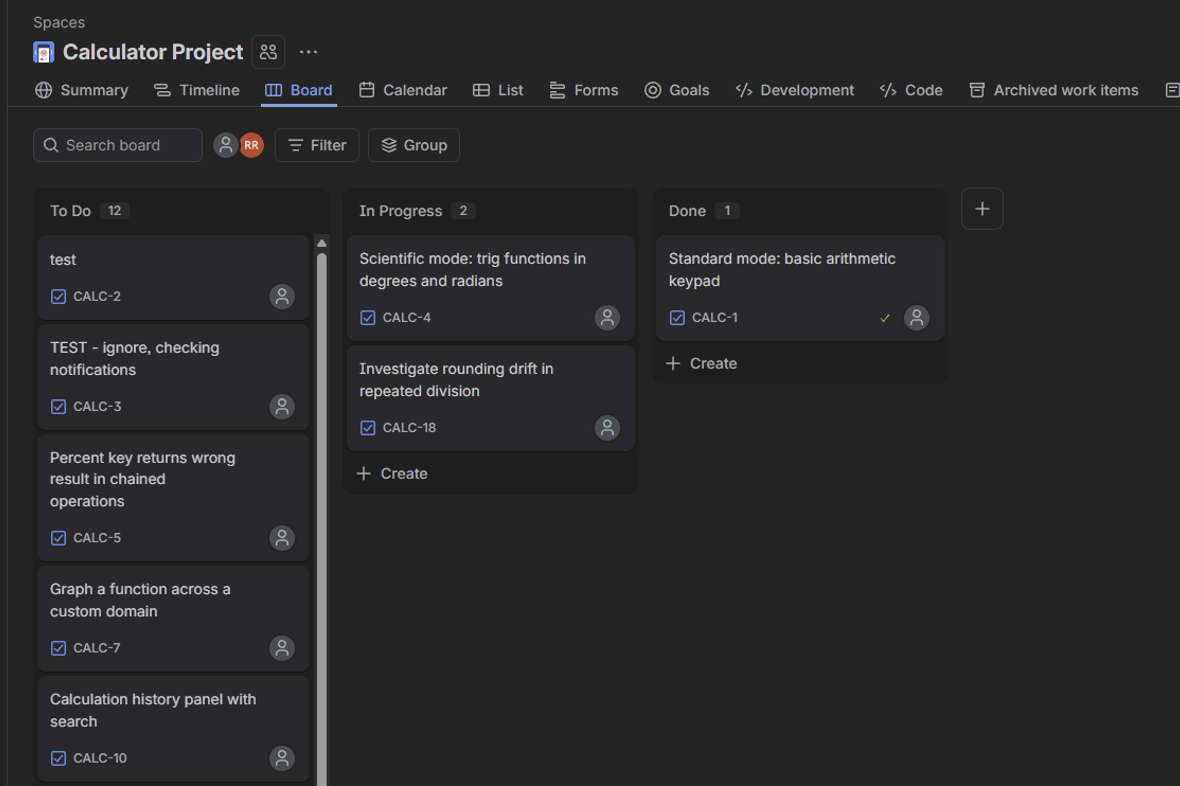
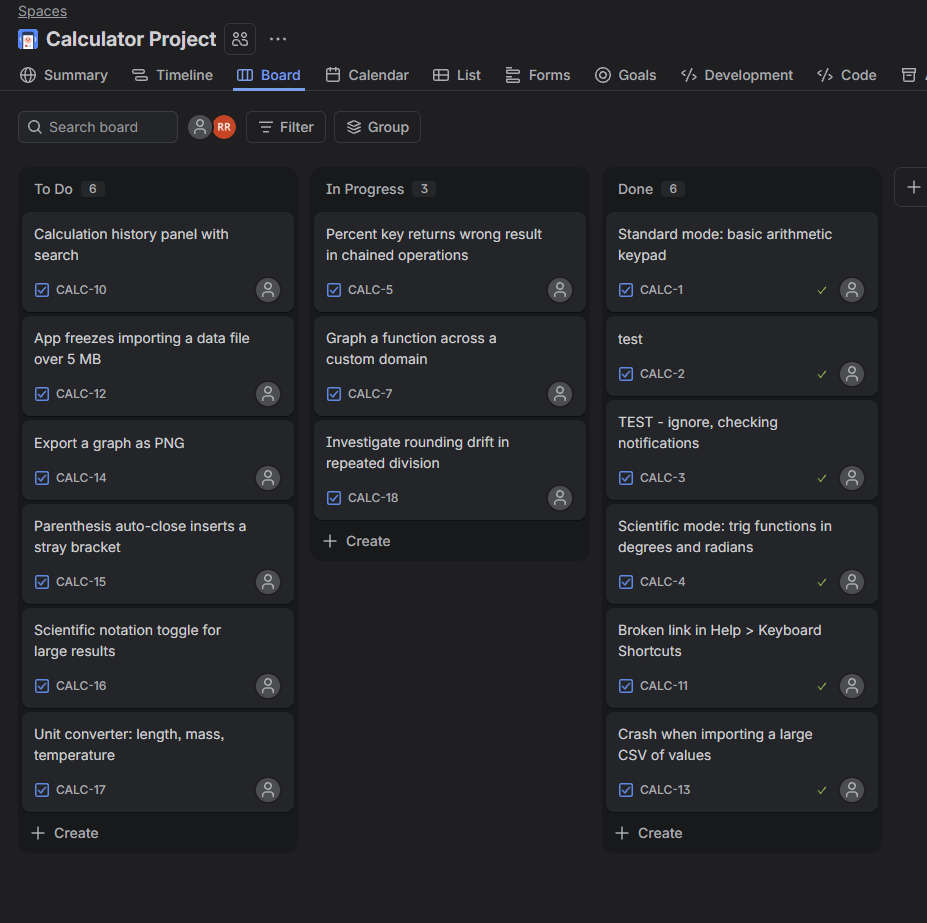
The first thing I asked it to do was simply list our tickets. Without any further prompting, it flagged real problems: two tickets were describing the same upload bug from different angles, and a couple of leftover "test" tickets were cluttering the view.
That's exactly the pass I'd normally make by hand on a Friday afternoon, resolved in seconds. The difference between having the data in Jira and being able to interrogate it in plain language is the whole point. I can ask what's High priority and still not started, what's been sitting untouched the longest, or whether what we've committed to actually ladders up to the sprint objective, and get an answer instead of a spreadsheet export.
Example 2: Gap Analysis Against the Requirements
This is fantastic for preventing any missing tickets. I can hand it a spec, a PRD or acceptance criteria and ask the two questions that usually surface too late:
- Which requirements have no ticket covering them? (What are we forgetting?)
- Which tickets don't map to any requirement we agreed on? (Where did this scope creep in?)
It produces a real gap analysis, and importantly it can draft the missing tickets for me to approve rather than making me type them. That hands off naturally into the next example.
Example 3: Creating a User Story with Code-Aware Context
Not only has creating tickets become easier, but now I’m able to include more detail. I can have Claude create more than a stub. I can have it search through the code and add references as needed and can even dictate other information I want to pass to the ticket description. Claude can even note what requirement is being fulfilled.
A story written against the real codebase is a clean handoff. It’s detailed enough that a developer can later hand that same story back to Claude and ask it to produce code or a build plan because the context is already in the ticket.
Example 4: Writing Status Reports and Release Notes from Jira Data
Status rollups, a tidy summary for stakeholders, release notes – it can draft those. It can even publish them to Confluence through the same connection. That's time back for every PM and lead who currently hand-assembles them.
Human Approval Still Matters
I'm deliberate about two things. First, anything that changes Jira gets reviewed before it happens. I have the assistant show me the plan – which tickets, which edits – and I approve it. Reading and analysis are free and safe. Writes are a conversation.
Second, it only reasons over what's actually in Jira plus what I give it. It won't invent business context, and its capacity calculations are only as good as the estimates we track.
Less Jira Administration, More Building
The impetus here was to enhance efficiency not just for me, but for everyone who touches Jira and feels that same low-grade administrative tax. Connecting Claude to our boards turns Jira from a place we store work into something we can have a conversation with.
With agentic tooling connected to the systems we already use, the backlog now grooms faster, the gaps surface earlier, and the stories that come out the other side are detailed enough to actually build from. That means I can now spend less time managing Jira and more time making sure the work itself is clear, complete and ready to build.
If you want to try it for yourself, follow the setup instructions in the appendix.
Appendix
Here’s the exact setup for you to follow:
1. Add the server config
Add this at user scope (top-level mcpServers in ~/.claude.json) so it works across every project. Note there is no Authorization header – that omission is what lets OAuth run.
"mcpServers": {
  "atlassian": {
    "type": "http",
    "url": "https://mcp.atlassian.com/v1/mcp"
  }
}
Use the HTTP endpoint …/v1/mcp. The older SSE endpoint (…/v1/sse) is being deprecated after June 2026.
2. Authenticate
In a fresh session (MCP config is read at startup):
- Run
/mcp. - Select
atlassian→ Authenticate. - Complete the browser OAuth flow and approve the workspace/scope consent.
The OAuth token is cached securely by the client; nothing secret is stored in your config file.
3. The one trap: don't paste an API token
Do not paste a Jira API token into the config. The official endpoint speaks OAuth, not API tokens, and when you give it a token it doesn't error it silently falls back to a near-empty toolset. You end up with a server that says "connected" but can't actually touch a single ticket. The fix is counterintuitive: remove the credential you were tempted to add and let the browser login do its job.
4. Fallback mcp-remote bridge
If native OAuth doesn't trigger, the mcp-remote npm bridge runs the same flow and needs only npx:
"atlassian": {
  "command": "npx",
  "args": ["-y", "mcp-remote", "https://mcp.atlassian.com/v1/mcp"]
}
5. Verify
/mcpnow lists manyatlassiantools, not just the two Teamwork Graph ones.getVisibleJiraProjectsconfirm your project appears.searchJiraIssuesUsingJqlwithproject = "MYKEY" ORDER BY created DESC.
If your project key is a JQL reserved word (e.g. AS, IS, IN, OR, AND, NOT, WAS), quote it: project = "AS". Unquoted, the query is rejected.