

Qt’s New Agent Skills in Action with Claude Code (Part 2)
TL;DR: Qt’s new agent skills and Documentation MCP help Claude Code automate common QML development tasks and work with more accurate, up-to-date information.
In a previous blog I introduced the initial five Qt agent skills released at launch, which deliver better QML, smarter code reviews, and more useful documentation.
The Qt Company has been hard at work cranking out new skills, so this time we’ll test the next batch of skills released since the initial five. Summarized in the table below, these skills help QML developers with performance profiling, generating unit tests, and UI design.
| Slash Command | Skill Description |
| /qt-qml-profiler | Automates performance profiling of QML applications |
| /qt-qml-test | Generates new unit tests for existing QML files |
| /qt-qml-test-run | Executes existing unit tests |
| /qt-ui-design | Reviews existing UI designs or creates new ones |
In addition, there is one more feature which is not actually a skill: the Documentation MCP Server.
Let’s get started testing them out!
QML Profiler Skill
Profiling is a great way to pinpoint performance problems in an application. A QML profiler has been available in Qt Creator for quite some time (under the Analyze menu) and it does a good job of generating a bar graph (below) or flame graph showing where the machine is spending its resources.
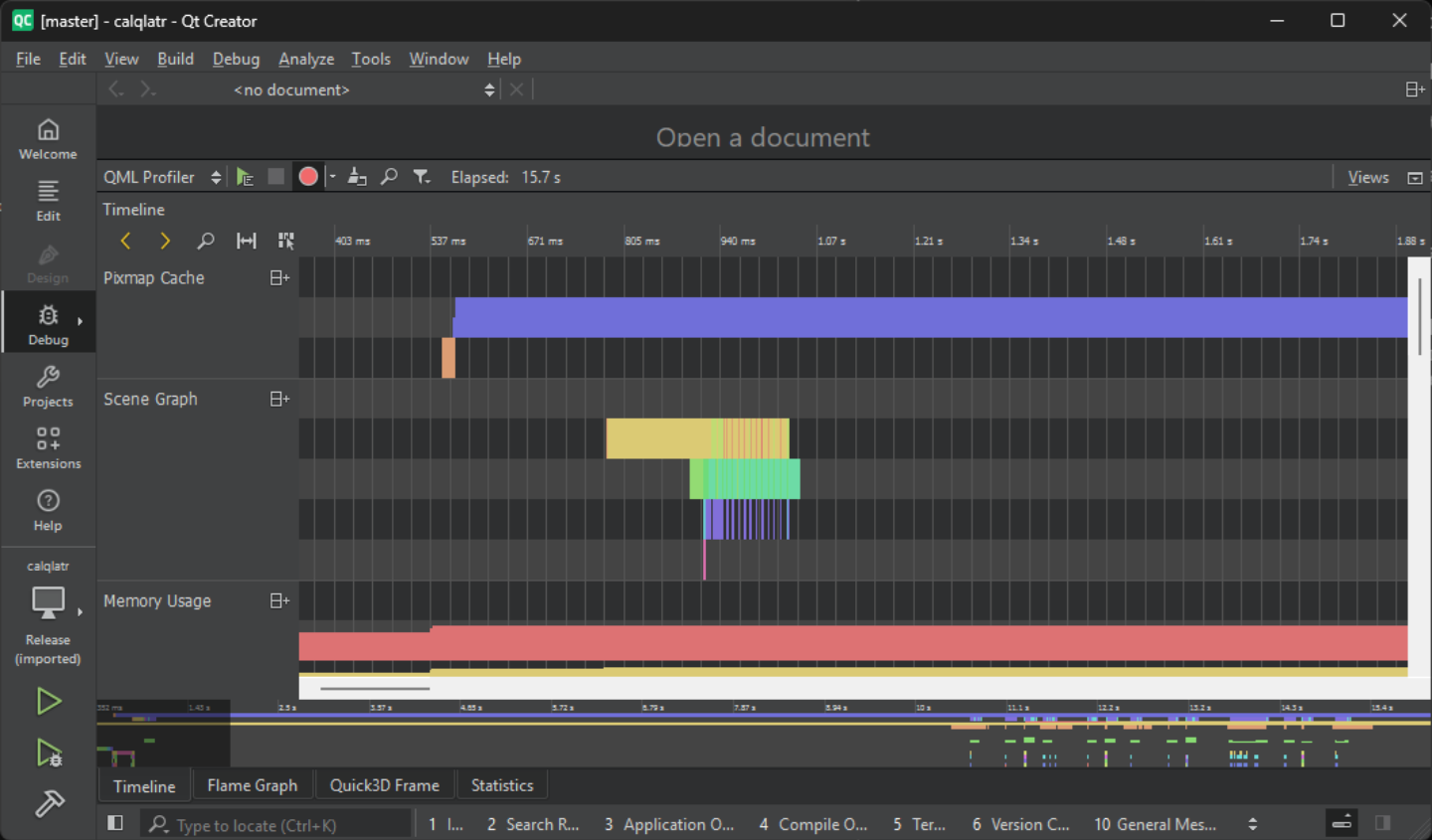
However, it can be tedious to manually analyze these graphical depictions. The /qt-qml-profiler skill provides an alternative and automates performance profiling of QML code, from running the profiler to generating a report. It requires Python to be installed.
Let’s test it out on the calqlatr project that ships in the Qt Examples folder.

After building the application, the skill will automatically run it under qmlprofiler (also used by Qt Creator). At this point we should tap on or click on the application in a way that exercises the performance issue.
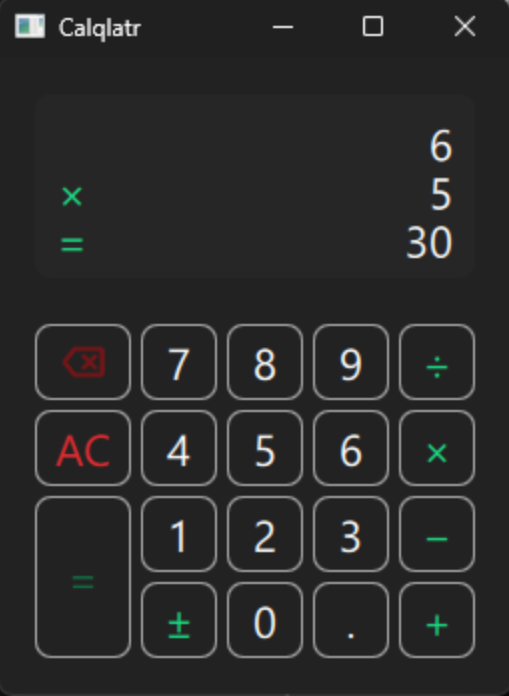
After we’re done and we close the application, a .qtd XML file will be written to profiler/traces (the same file format used by Qt Creator). This file is not intended for human consumption.
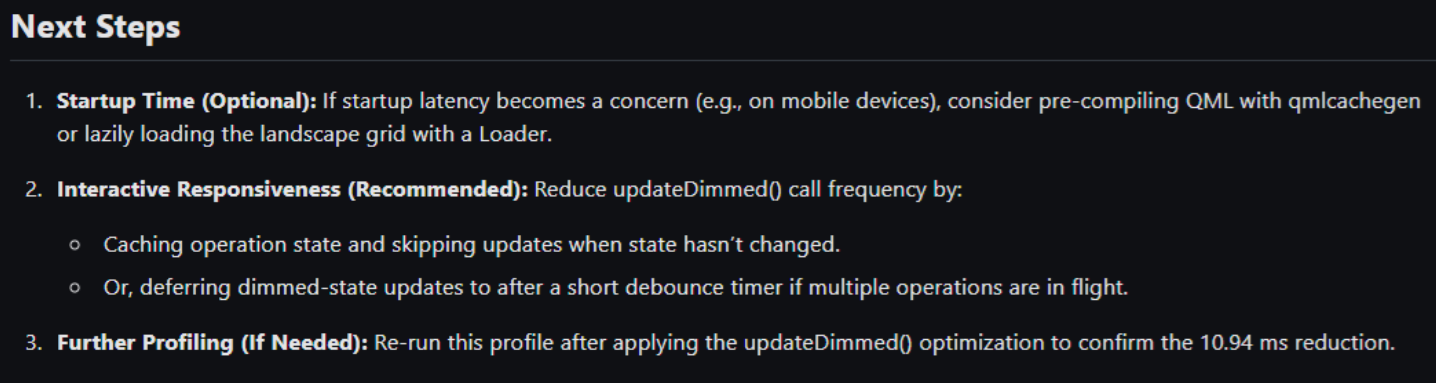
Lastly, a python script reads the .qtd file and generates a human readable report .md file under profiler/reports. The most useful section of the report is probably Next Steps.
In addition, the skill lists the top “hotspots” to the console.
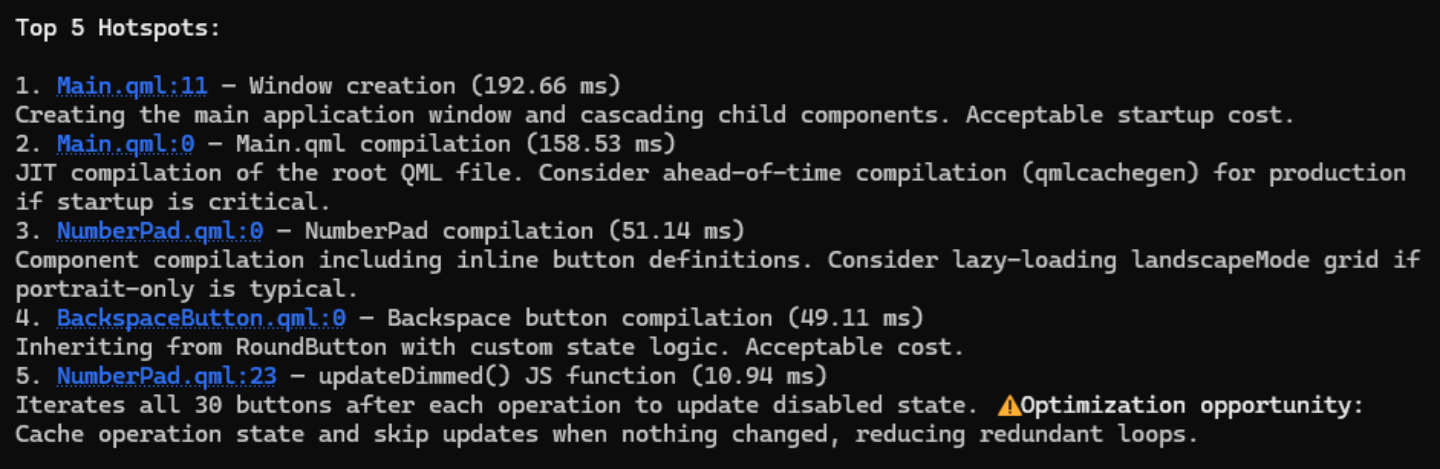
It’s useful to have actionable suggestions spelled out in English like this, which Qt Creator’s QML profiler does not do.
QML Unit Test Skills
The /qt-qml-test and /qt-qml-test-run skills automate the creation and execution of unit tests for QML components. /qt-qml-test in particular is a life saver for those of us developers who dread writing unit tests and whose project requires them. I found that the more powerful the model used, the more likely the generated tests pass out of the gate, so I recommend using at least Claude Opus. Let’s test these skills out on Qt’s calqlatr example.
To start, let’s run /qt-qml-test on just the CalculatorButton QML component to generate new unit tests for it.

We can also run the skill on an entire folder of .qml files.

However, running /qt-qml-test on just a single .qml file at a time may give better results due to the limited context window size.
After running /qt-qml-test, the skill wrote a file called tst_CalculatorButton.qml to the test folder, so let’s take a look at it.
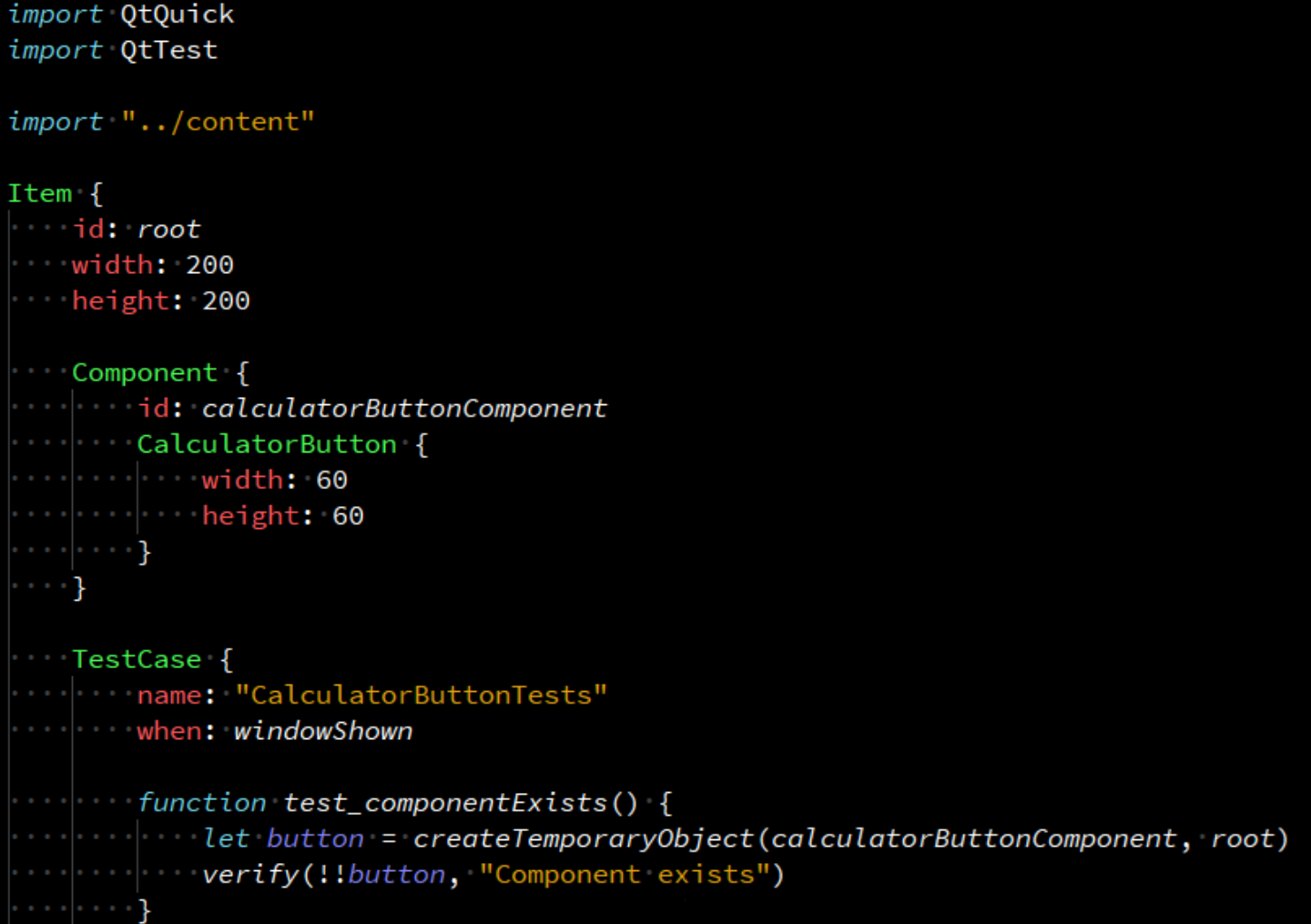
We can see that it wrote a Component (the unit under test) and one or more TestCases all wrapped in a root Item.
Now let’s temporarily exit Claude, change into the tests folder, and run qmltestrunner on tst_CalculatorButton.qml to see how many of newly-generated tests pass.
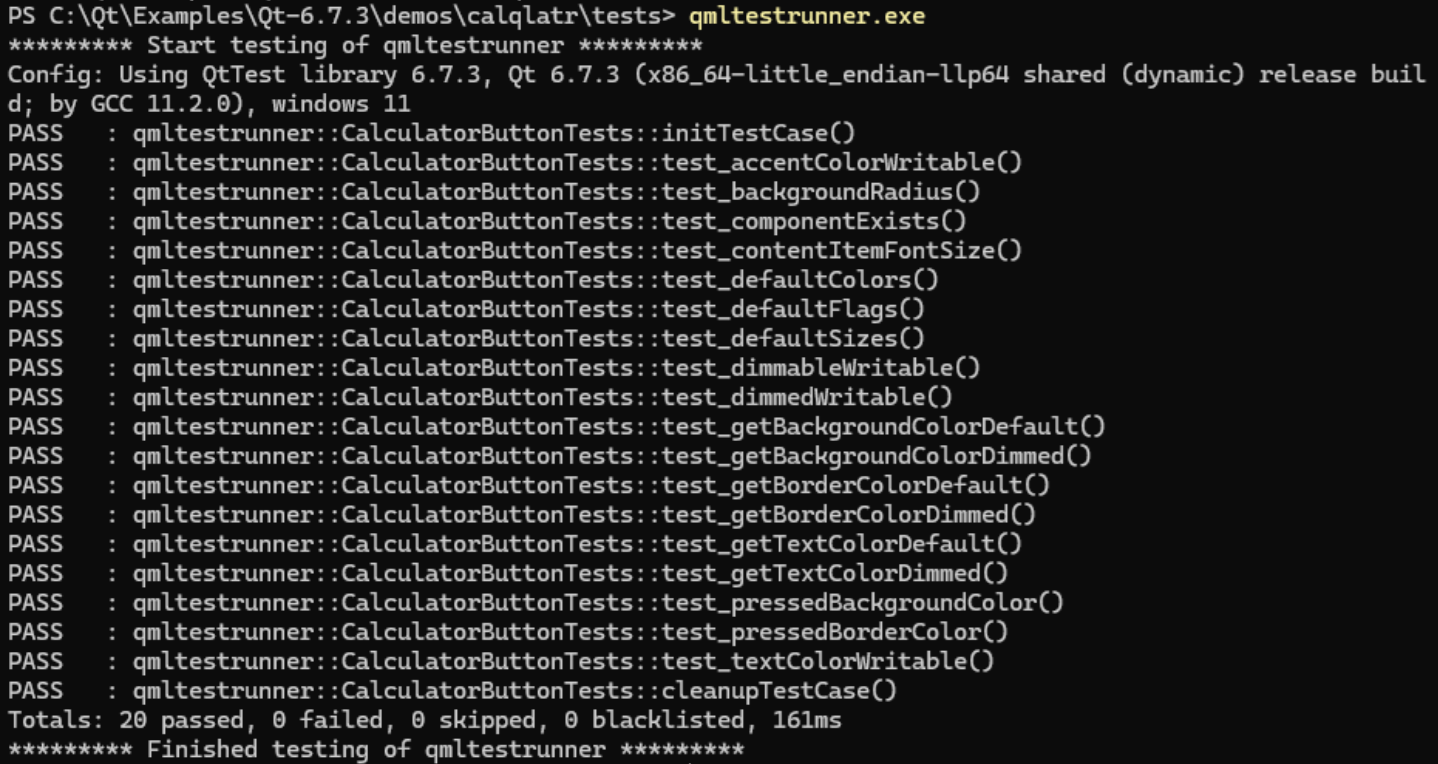
Lucky for us, all generated tests passed, but this may not always be the case. Sometimes some tests may fail and we’ll have to fix them. Note that the first test will always be initTestCase() and the last test will always be cleanupTestCase(), adding two more tests to those in the .qml file.
Now that we have unit tests that we can run, let’s test out the second skill /qt-qml-test-run to run the test without leaving Claude (and hopefully we get the same results).

The –no-build flag here causes Claude to run qmltestrunner (the same as we did above outside Claude). If we instead pass –wire-up, the skill will generate an executable and run that instead of qmltestrunner.
After /qt-qml-test-run is finished, there should be a new JUnit-style .xml file under build\tests\reports\junit. Let’s take a quick look at the top of that file.

We can see that it lists all the tests that were run, the time they took to execute, as well as the number of failures. This .xml file isn’t human friendly to read, so in addition, a .md file was written to build\tests\reports. The skill used Python to parse the .xml file and generate the Markdown file. Taking a look at the .md file in Chrome with the Markdown Reader extension, we can see that it’s much easier to read the test results.
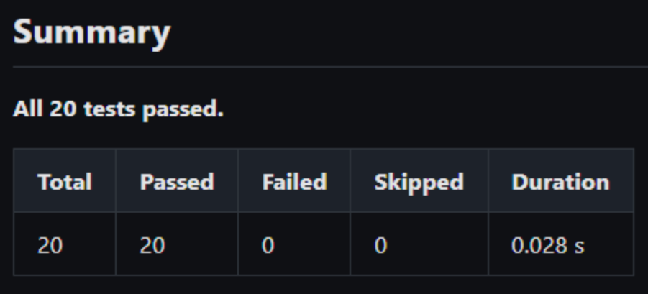
I think you’ll find both the /qt-qml-test and /qt-qml-test-run skills to be a valuable addition to your toolbox to both generate and run unit tests on existing QML files.
QML User Interface Design Skill
The /qt-ui-design skill helps QML software developers create well-designed graphical user interfaces, especially when they do not have access to a human UX designer. The skill can be used in two different ways:
- When generating new QML code
- When looking for ways to improve an existing user interface (audit)
We’ll test out both of these using a simple four-function calculator as an example.
Let’s ask Claude to generate a calculator user interface in QML both with and without the skill and compare the results. First, we can guarantee that the skill is not used by disabling the entire plugin (/plugins, disable qt-development-skills, /reload-plugins). Now we can issue the following prompt.

Now let’s re-enable the plugin (/plugins, enable qt-development-skills, /reload-plugins), exit Claude, move to a new folder, reenter Claude, and issue the following prompt.

Now we should have two folders with two different calculator implementations. If we run them side-by-side using the qml executable, we can compare them.
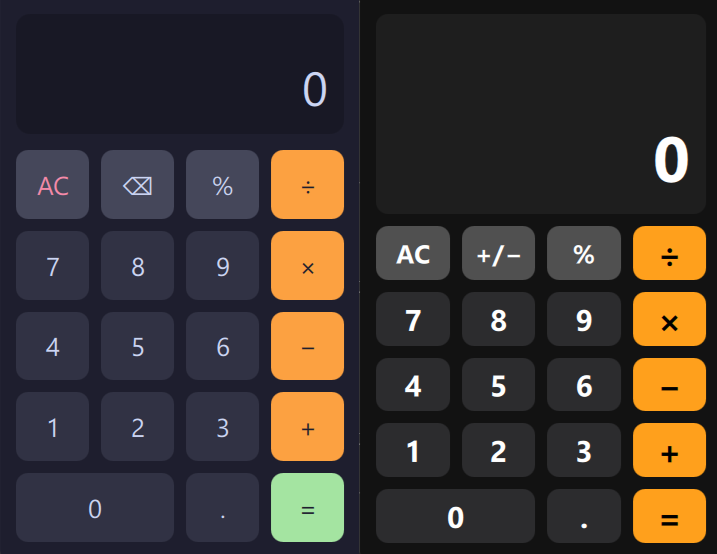
The one on the left (not using /qt-ui-design) does look a bit more amateurish. It utilizes more colors, the text isn’t as readable, and has less room for the calculations. The one on the right (using /qt-ui-design) on the other hand looks more polished, professional, and readable.
Now let’s test out the second way we can use the /qt-ui-design skill: by auditing an existing user interface. To do this, we’ll take a screen capture (alt+prt sc) of the calculator on the left above, save it in a file called calculator.png, and then feed it to the following prompt.

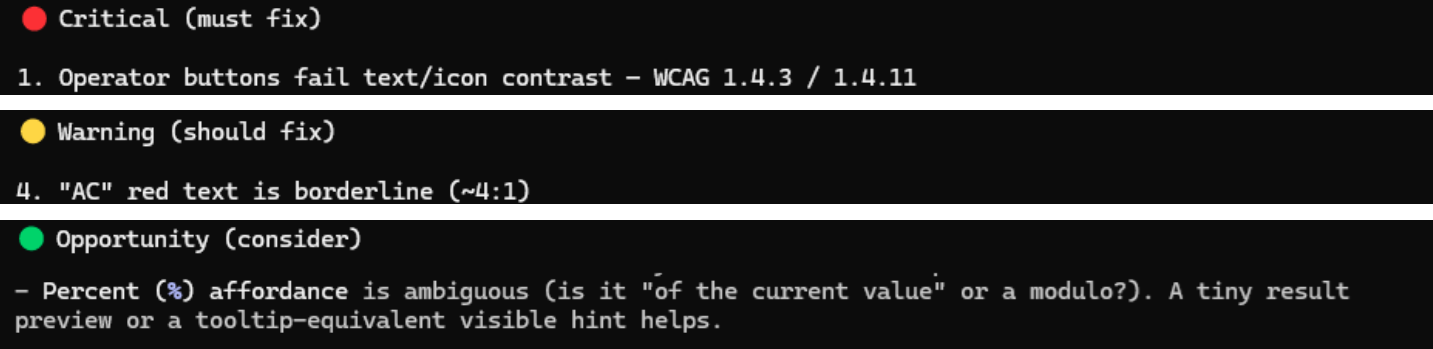
This asks the /qt-ui-design skill to give feedback on the user interface in calculator.png using “vision”. When it’s done, the skill will output suggestions to the prompt in three severity categories:
- Critical (must fix)
- Warning (should fix)
- Opportunity (consider)
Examples from our calculator.png are below with results shortened for brevity.
Whether you’re generating new QML code or looking to improve existing QML, I’m sure you’ll find the /qt-ui-design skill helpful to create better looking user interfaces.
Documentation MCP Server (qt-docs)
The Documentation MCP (Model Context Protocol) Server gives Claude Code access to the same Qt API documentation available in Qt Assistant (or Qt Creator).
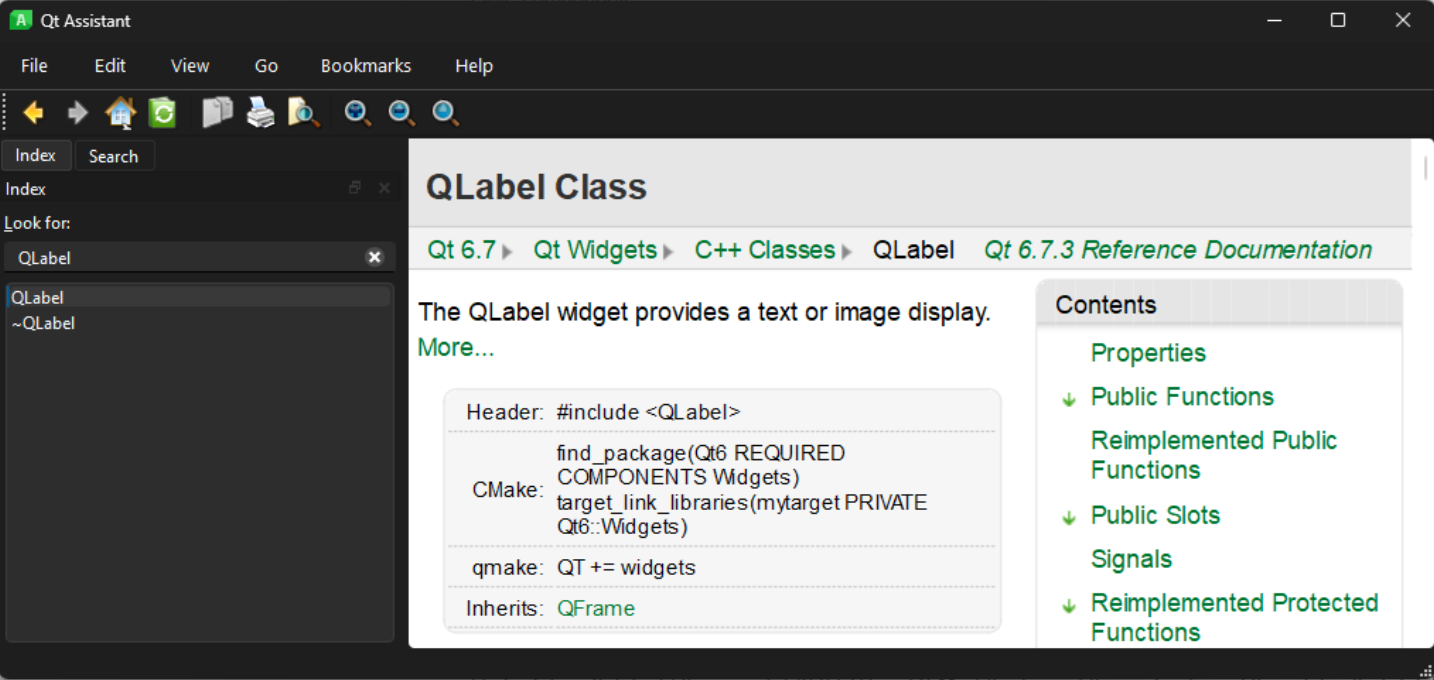
Model Context Protocol is a network protocol that allows AI agents like Claude Code to communicate with servers over a network. The Qt Company runs one of these servers.
I would say that the Documentation MCP Server was built more for agents than humans, since humans can just read the documentation directly.
The advantages of using the Documentation MCP Server are:
- Less token usage (responds with pure text instead of raw HTML)
- Up to date with the latest Qt version(s) (6.8 LTS and 6.11 at the time of this writing) i.e. it will contain new Qt modules that didn’t exist when the model was trained.
The Documentation MCP is not a skill and thus has no slash command; however, the server responds to two different requests i.e. “tools”.
| MCP Tool | Description |
| qt_documentation_search | Accepts natural-language or keyword queries to find matching Qt documentation |
| qt_documentation_read | Retrieves the full content of a specific Qt documentation page |
The state of these two tools can be queried with the /mcp slash command.

Neither tool can be called directly by the user. They are only called as the result of natural language prompts. To demonstrate how the Documentation MCP Server works, we’ll use the following prompt.

Claude code figures out that it needs to first invoke the qt_documentation_search tool, which returns one or more results. Each result contains a link to the full documentation (e.g. qlabel.html) and only the top (brief relevant excerpt) of the page.
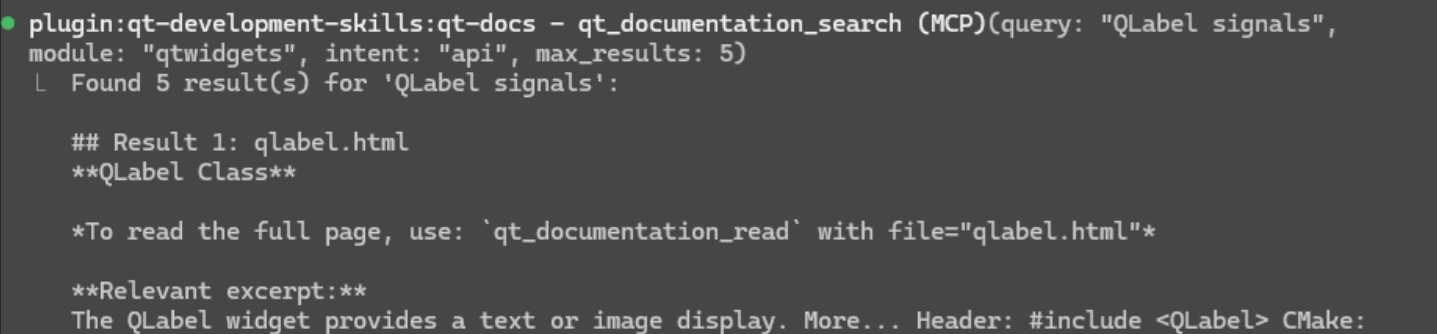
Claude Code then selects one of the results and calls the qt_documentation_read tool with the given link to obtain the full documentation text (truncated below).

Finally, Claud Code reads through the text of the page returned by qt_documentation_read to find the final answer.

More Powerful QML Development with Claude Code
If you are a QML developer who is using Claude Code (or any coding agent), this new batch of skills will be a valuable addition to your toolbox. From performance profiling, to generating unit tests, to UI design, to accessing the latest Qt documentation, these skills make AI-assisted QML software development easier and more productive. As Qt continues expanding its agent capabilities, these tools are making it increasingly practical to bring AI into everyday QML development workflows.