

Qt’s Approach to Input Validation: Masks and Validators Explained
Originally published in 2018 with a focus on Qt 5, this post has been updated in 2025 to reflect the current state of input masks and validators in Qt 6.
Handling user input gracefully is crucial for building polished, user-friendly applications. In this blog post, we’ll dive into how Qt helps manage text input using input masks and validators — two powerful features designed to prevent errors before they occur. We’ll focus on how these tools work with traditional widgets, specifically the QLineEdit class, and explore how they can help control and validate user input.
A Closer Look at Qt's Tools for Input Validation
A key principle of good user experience (UX) design is preventing input errors before they happen. Rather than alerting users after they’ve entered invalid data, it’s often better to design interfaces that guide or restrict input to valid formats from the outset. Common examples include using checkboxes, radio buttons, and combo boxes to limit available choices.
However, when users are free to enter arbitrary text, validating input becomes more complex. Qt provides two tools to help manage this: input masks and validators. Both can be used with the QLineEdit widget to restrict input and ensure it conforms to expected formats.
Input Masks
Lets look first at input masks. The QLineEdit [1] widget supports a property called inputMask. This is a string that defines the valid characters that can be entered into the widget. The input mask can be set using the method setInputMask() and returned using inputMask(). By default, a QLineEdit has no input mask and the user can enter any characters. Setting the input mask to an empty string is equivalent to having no input mask.
The mask consists of a series of characters that define the valid data that the user can enter. It uses a unique format to indicate the character classes that can be entered. The table below (taken from the Qt documentation) lists the supported input mask characters:
| Character | Meaning |
|---|---|
| A | ASCII alphabetic character required. A-Z, a-z. |
| a | ASCII alphabetic character permitted but not required. |
| N | ASCII alphanumeric character required. A-Z, a-z, 0-9. |
| n | ASCII alphanumeric character permitted but not required. |
| X | Any character required. |
| x | Any character permitted but not required. |
| 9 | ASCII digit required. 0-9. |
| 0 | ASCII digit permitted but not required. |
| S | ASCII digit required. 1-9. |
| d | ASCII digit permitted but not required (1-9). |
| # | ASCII digit or plus/minus sign permitted but not required. |
| H | Hexadecimal character required. A-F, a-f, 0-9. |
| h | Hexadecimal character permitted but not required. |
| B | Binary character required. 0-1. |
| b | Binary character permitted but not required. |
| > | All following alphabetic characters are uppercased. |
| < | All following alphabetic characters are lowercased. |
| ! | Switch off case conversion. |
| [ ] { } | Reserved. |
The mask consists of a string of mask characters and separators, optionally followed by a semicolon and the character used for blanks. The blank characters are always removed from the text after editing. You can use "\" to escape the special characters listed above to use them as separators. When an input mask is set, any characters that do not match the mask are ignored on input and not displayed in the line edit. This allows meeting the goal of ensuring only valid user input can be entered.
Here are a few simple examples of input mask strings:
A four digit hexadecimal number, e.g. "FE39": "HHHH".
A six character US ZIP code, e.g. "90210": "99999".
A Canadian postal code, e.g "K2L 1S2": "A9A 9A9".
There are a few other things to note about input masks. The maxLength property of the QLineEdit will be set by the input mask, if one is defined. The QLineEdit widget emits the signals editingFinished() and returnPressed() when the Return or Enter key is pressed or the line edit loses focus. These signals will only be emitted if the input matches the input mask, when one is defined.
A method hasAcceptableInput() returns a boolean value indicating if the input satisfies the inputMask (and the validator, to be covered later). You can use this method validate input. For example, you might enable a "Next" button in a wizard type UI or a "Commit" button in a dialog only when the input was acceptable.
Input Mask Example
A simple example program [6] illustrates the use of an input mask. It provides a line edit for input text and another line edit to enter an input mask. As characters are entered, the status bar indicates whether the input is considered acceptable. It also indicates in the status bar when the editingFinished() and returnPressed() signals are emitted. A Quit button is provided to exit and a Clear button sets the line edits to empty strings. A Help button is provided to display a dialog showing the mask string characters.
Here are some screen shots:
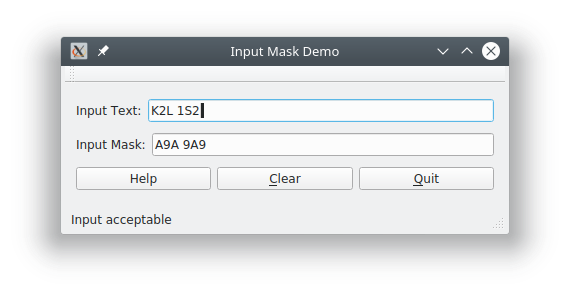
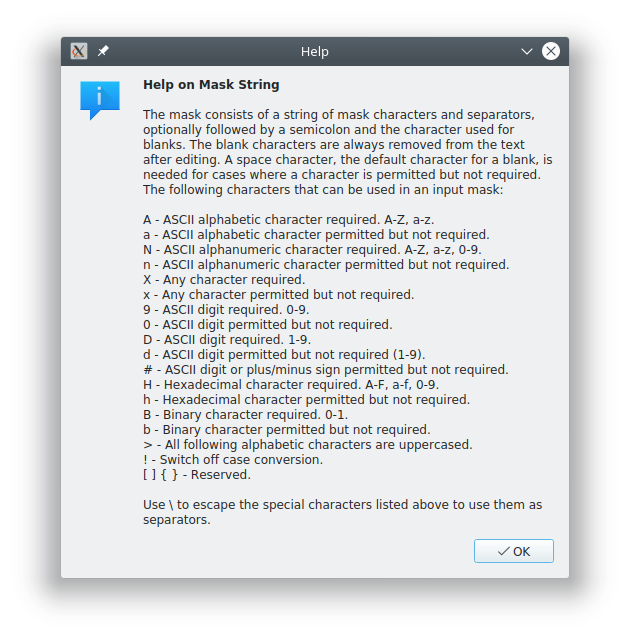
You can run the application and experiment with different input text and input mask values, to better understand how this feature works. We encourage you to download and run the program and examine its source code. The code should work with any version of Qt 6. Most of the logic is in the file mainwindow.cpp, which is less than 100 lines long, and you should find it self-explanatory.
Validators
An input mask is only adequate for simple validation of characters. To go beyond this, Qt provides the QValidator class [2].
QValidator is an abstract base class that defines a common interface for text validators that is used by several classes that inherit from QValidator. You can also subclass QValidator to create your own custom validators.
The interface defines a state which can be returned as a property. The status of a validated string at a given time can be one of Invalid, Intermediate or Acceptable.
An Invalid string is one that is clearly invalid based on the validator's criteria, and an Acceptable string is one that is valid as a final result (the same as for an input mask). The Intermediate state is used to indicate a string which is incomplete but valid as a partial input that is in the process of being entered by the user.
It also defines a method fixup() which accepts a string and attempts to modify it to be valid according to the validator's rules.
Qt provides four subclasses that implement specific validators to cover a number of common validation use cases.
QIntValidator [3] validates a string that should contain an integer within a given range. It provides properties to set the range of lower and upper numeric values.
Similarly, QDoubleValidator [4] validates a string representing a floating point number. As well as the lower and upper ranges of valid values, it supports specifying the number of decimal places as well as whether the string should use standard floating point notation (e.g "1000") or scientific notation (e.g. "1E3"). The validator takes into account the current locale when interpreting the valid characters for digits and the decimal symbol.
The QRegularExpressionValidator [5] class checks a string against a regular expression. It has a property of type QRegularExpression to store the regular expression to match against. This provides a very general method for checking the validity of a string.
Finally, QRegExpValidator is a similar class to the previous one, but uses a regular expression of type QRegExp. In Qt 5, the QRegularExpression class was introduced as an improvement over the QRegExp class used in earlier Qt releases. In Qt 6 the QRegExp classes were removed – important to note in case you come across them in older code.
To use a QValidator with a QLineEdit, you create a suitable QValidator-derived object and then call setValidator() on the line edit. The line edit will now validate the string using the validator, much as it does when using an input mask. The input will be constrained to the relevant characters and the acceptableInput() method will return if the input is acceptable as a final result.
The editingFinished() and returnPressed() signals will only be emitted if the input is acceptable to the validator.
The validator() method will return the validator set for the line edit. You can clear the validator by passing zero or a null pointer to setValidator().
As well as QLineEdit, the only other standard Qt widget that supports a validator is QComboBox, and it uses it in a similar manner to the line edit.
Validators Example
Another example program [6] illustrates the use of validators. It provides a user interface with a QLineEdit for input text. You can select whether to use a validator for type integer, double, or regular expression. Given the type, you can specify the validator parameters such as the range of values for the numeric validators or the regular expression string. As you enter text into the line edit, the status bar indicates of the input is acceptable to the validator.
Here are a few screen shots:
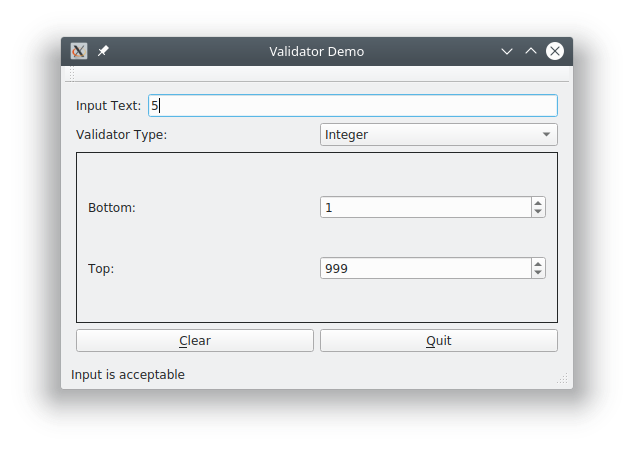
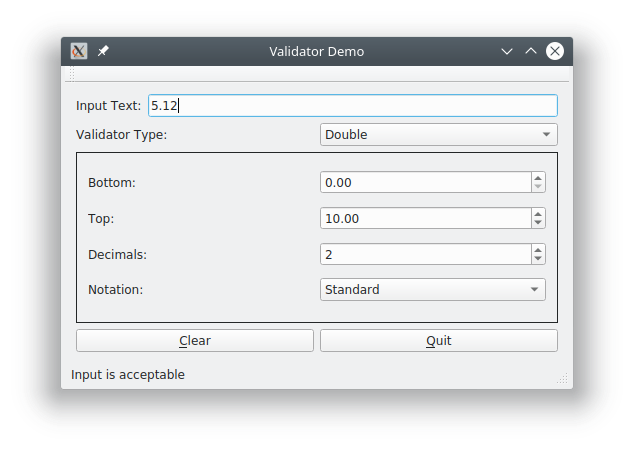
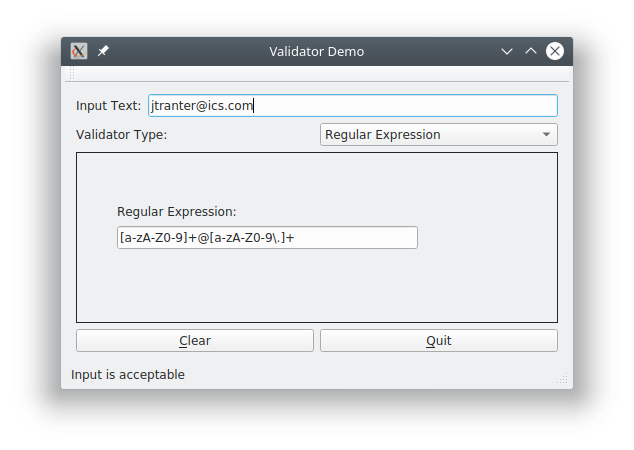
The program is useful for understanding the behavior of the validators, especially for testing regular expression strings. I would encourage you to download the source code [6] build and run it, and examine how it was implemented. The code should be self-explanatory. It requires Qt 5.7.0 or later.
If you want to extend the example, these are a few enhancements you could try making as an exercise:
- Change the code to use a QComboBox instead of a QLineEdit.
- Add a comobo box that allows setting the locale, and see how the numeric validators take the locale into affect.
- Provide a combo box with some predefined regular expressions for specific values (e.g. IP address, hardware MAC address, email address, lottery number).
- Implement your own custom validator (as a sub-class of QValidator) with some special behavior that you specify.
Combining Input Masks and Validators
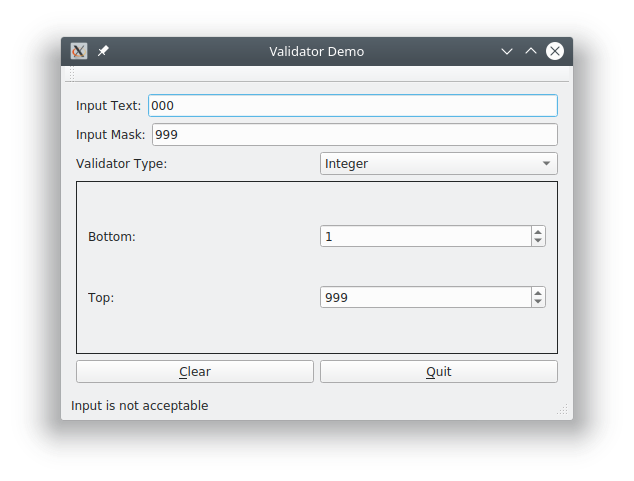
Wondering whether you can use both an input mask and a validator at the same time? The answer is yes, though doing so requires some care. We suggest that you experiment and carefully test your code to ensure that you get the behavior that you want. You can try the code [6] and experiment with it yourself.
Here's a screen shot:
Next Steps and Resources
The Qt source code includes two practical examples of input masks and validators, which can be found in the following directories of your Qt installation:
examples/widgets/widgets/lineedits
examples/widgets/widgets/validators
These examples demonstrate how to implement these features in real applications. Input masks and validators are powerful tools for improving both the usability and reliability of your application. With just a bit of extra programming, you can incorporate them into your UI to guide users, prevent errors and ensure that the data entered is always valid.
References
- http://doc.qt.io/qt-6/qlineedit.html
- http://doc.qt.io/qt-6/qvalidator.html
- http://doc.qt.io/qt-6/qintvalidator.html
- http://doc.qt.io/qt-6/qdoublevalidator.html
- http://doc.qt.io/qt-6/qregularexpressionvalidator.html
- https://github.com/integratedcomputersolutions/blogs/tree/MasksValidators